Showing posts with label Apps. Show all posts

Thursday, April 21, 2011

Ubuntu One Music on Android just got a whole lot better

The Ubuntu One team are feeling the joys of Spring, because after several months working hard we’ve got some great news about updates to our Android Music app, which don’t forget works anywhere in the world!
The first thing you’ll notice in the new UI is album art so you will now see any saved album covers. Managing your playlists is now even easier as you can create, edit and delete playlists straight from your device. Those of you with lots of music will notice the overall speed improvement, meaning you can enjoy your huge music collection without any long waits. Plus, we have also added support for non-DRM iTunes songs so that you can stream songs you’ve purchased from iTunes just as easily as your MP3s, bringing all your music together.

Album view Playlist view Playing paylist

In addition many of you requested this next feature so we’re sure you’ll be pleased that we now support songs in Ogg Vorbis format so you can stream your collection of Ogg music natively, without the need to convert it to another format. If you’re a developer you may be interested in knowing that playlists are stored in your CouchDB database allowing you to write applications that read/write to them.
So that’s faster access to more of your music wherever you are in the world. The latest version 1.2 is now available in the Android market, happy listening and watch this space for upcoming updates to our iPhone app.

Friday, June 12, 2009

Turn Your Android Phone into a SIP Phone Place/Recieve Free Calls with Google Voice or Use other voip Service.

Did you know you can turn your phone into a SIP phone with sipDroid?

Sipdroid is an open-source SIP client implemented in Java. The project was based on:

Sipdroid can be used with Asterisk or any other sip phone system, even free systems like Gizmo, or ipKall

I have added my Gizmoproject phone number to my GoogleVoice account, GoogleVoice is currently private beta without invites, so you may want to try ipKall or another cheap voip/sip service.

The nice thing with this setup is it allows you to either use your unlimited data plan or wifi connection to make/recieve calls.

First you need to login to gizmoproject.com or create an account then find the SIP phone number to add to GoogleVoice:

  1. Sign in to Google Voice.
  2. Go to the Settings link at the top right of the page.
  3. Click the Add/Edit Number link right above your phones, to the right of the page.
  4. Click the Phones tab.
  5. Click Add a new number.
  6. Select Gizmo in the Phone Type drop-down menu.
  7. Enter your SIP number without 1.
  8. Enter a name for that phone, if you want.
  9. Click Save.
Once that is done, click here to download sipdroid, and install that on your Android
SipDroid only works with cupcake/adp roms

Run SipDroid
Press Menu->Settings:

Press Server, and enter: proxy01.sipphone.com
Then enter your Gizmo login information where Username/Password are
Press Use WLAN, and Use 3g/Edge and leave the other settings alone, press back then you are ready to use Google Voice to place all call :)

Head over to https://www.google.com/voice/m/phones
Make sure gizmo is checked, then go to http://www.google.com/voice/m and input a number in quick call and press call.


Enjoy your free Sip calls without using airtime over 3g or wifi :)


Example Incoming SIP Call:

Thursday, June 11, 2009

Introducing GV - Google Voice App For Android!


I have been a Google GrandCentral user for over a year, and a few months back Google Voice was released! Before Google Voice was even released Evan Charlton an Android Developer that created successful android apps like FML, Mileage, and G1 Central released GV to the Android Market!

GV is an Android front-end to the Google Voice service.

This application is free and source is available under the Apache 2.0 license.

  • Easily configured to route all calls from your Android device through Google Voice.
  • Or selectively dial contacts (or ad-hoc numbers).
  • Use visual voicemail to listen to, download, delete, or reply to your voicemail messages.
  • Send SMS messages from your Google Voice number, and receive the(free SMS!)
  • Browse your call log (placed/missed/received calls) in a visual way.
  • View Voicemail Transcripts on the Fly before listening to the actual message
  • Full SMS support (conversations, replying, much better composition view, etc).
  • Faster loading
  • Recursive loading of voicemail, call logs, SMS
  • Delete call log entries
  • Restored callback dialing. Due to user feedback, I revamped and restored the callback method of initiating a call. This works when calling from GV as well as when GV is set to route all calls through Google Voice.
Version 2.2.3: Introduces Faster loading, voicemail transcripts, *full* SMS capabilities!!!
Added some nice auto-text features on the SMS composition text area and fixed a bug with the unread-checker service (caused when the net connection couldn't find google.com)

Search for "GV" in the market or click here from your Android Device to me directed to the market!
Follow GV Development Here

Cyrket.com - Android Market Browser for your Desktop/Laptop or Netbook!

Cyrket.com is a nice site that allows you to browse the android market while on your desktop pc, laptop, and netbook. Some of the features I love is that it is easy to search , QR-Codes, app ratings and recent reviews! My favorite is the QR-Code capability, you can simply find an app on Cryket, open the barcode scanner app found in the market on your android device and point it to the QR-Code and your android device will be directed right to the app you found at your desk. Its great for work and to impress friends :) You can even keep up with the latest apps with your favorite RSS reader!

Checkout Cyrket.com

Introducing Twidgit, The First and Best Twitter Widget for Android!


Its only been a few weeks since cupcake has been released to everyone and Twidgit The very first Twitter widget appeared in the market by a talented 22 year old named Matt Woodfield

Twidgit is A Twitter homescreen widget that updates with your most recent timeline feed,
views the last 20 tweets, allows you to reply to each & set your status in an instant without having a resource intensive app running that slows down your G1

Twidgit Already has great potential to beat the top twitter apps on the market like Twitdroid, Twit2go, and a few others.

It looks like Twidgit 1.1.6 was removed off the market anticipating a new 1.1.7 release!

Matt just posted this announcement on Twitter!

Here is 1.1.6 if you want to check it out, download like any other app within your G1 browser and install, and longpress your homescreen->Widget->Twidgit Lite
IMPORTANT If updating, please remove existing widget from home screen before install

[EDIT] Lite 1.1.7 released to the android market. Update includes text correction, char counter & tweet timestamps. More coming soon…

Click Here From your Android Device to Download
More info Here
Follow the Developer on Twitter

Thursday, December 11, 2008

Howto: Enable Autorotate for your G1 Browser!

I'm not sure why the Android Browser doesn't auto rotate by default. Instead they have a "Flip Orientation" menu item that lets you toggle your default orientation. Pretty useless overall. Anyhow, a quick hack in the Browser source code let me enable auto rotation via the G-Sensor.

The change is really trivial. In the BrowserActivity.onCreate, I hard coded the orientation to ActivityInfo.SCREEN_ORIENTATION_SENSOR instead of pulling it from a preferences setting.

The downside is that the flip orientation menu item no longer works. Not that I care: I (and probably most people) never used it. So it is a hack, but oh well. If I'm motivated I'll put in a proper fix.

Installation Instructions (you must have root access):

  • Download the updated Browser.apk
  • Run the following from the command prompt to back up your current Browser file to your sdcard and install the new one:
    • adb remount
    • adb pull /system/app/Browser.apk BrowserBackup.apk
    • adb push BrowserBackup.apk /sdcard
    • adb shell rm /system/app/Browser.odex
    • adb push Browser.apk /system/app

Friday, November 28, 2008

Introducing G1 Central, GrandCentral Dialer App for The G1!

OMG Im so glade I got a google G1 phone, now I can make free calls
with grandcentral with the G1 Central Dialer!

G1 + Myfaves + GrandCentral # = free calling

Keep in mind Grand Central does not allow invites at this time so you will be unable to make a new account for now, the best thing to do is set a google alert to find out when they open up to the public

G1 Central is an application for Android-based phones which allows you
to place calls to any number from your GrandCentral number. It
supports both Dialer mode as well as reading from your Contact list.

Version 1.01 is in the App Market, but there is updates and svn access here:
http://evancharlton.com/projects/g1central


2008-11-26 1:03 G1 Central version 1.0.3 Fixed a very minor usability issue.
SHA1: 156ed6d2d1da433642e11d8c5970aefa502cfd61 MD5: 94d779225d8de410ab624d0cdfc94239
2008-11-25 17:02 G1 Central version 1.0.2 Fixed the bug with multiple calls in a row crashing the application.
SHA1: 33bd0b2befc1b1262837144c8b9594b94e718c16 MD5: 6bd76184301b9e17c3f074d9bf08d63f
2008-11-24 23:12 G1 Central version 1.0.1 Fixed a very minor bug with the Contact list
SHA1: e28bfbd0ad1f9730bedc4d3f2b699203ae1cb821 MD5: e69417ba96cf45d21087787718478a6c
2008-11-24 22:38 G1 Central version 1.0.0
SHA1: ccdb9d873623d87f8cd8c32fdead89268352c2ac MD5: 1017b6e9e2d1826b4048aa8c7fd377a4

Thursday, November 27, 2008

Tuesday, November 25, 2008

OperaMini 4.2 Beta Hits The Android Platform!

cnet:
Opera Mini 4.2 beta, a test version released for Java phones just two weeks ago, on Monday became the first third-party browser available for Google Android.
Opera Mini 4.2 on Android

Opera Mini 4.2 is the first browsing alternative for Google's Android mobile operating system.

(Credit: Opera Software)

Opera Mini for Android, which was previewed in April, includes most of the familiar Mini 4.2 features: zooming, saving, bookmarking, and searching for in-line text has stayed intact, as has syncing via Opera Link and swapping skins.

We couldn't make the video playback workaround that debuted on other Java phones work in this build, though T-Mobile's USA's G1 phone does support video playback (see our review on TuneWiki.) We hear that Opera will address this issue when the mobile browser comes out of beta.

What's distinctive and commendable of the Android-optimized build: fast speeds over T-Mobile's 3G network, a very crisp display, and quality that approaches the iPhone when it comes to viewing a zoomed-out Web page, thanks to both screen size and image clarity. The G1's two menu keys also enhance the experience, making Opera Mini's controls easy to access and navigate.

Google Android was low-hanging fruit for Opera. It would have been better, of course, if the browser had been available when the G1 began selling, but of all third-party developers, Opera still managed to bring its free browser first to Android's market--and a very able version at that.

We're hoping that Opera will port its more robust Mobile version to Android next, and as always, that Opera will release a version that lets users type directly into a text field without pulling up an intermediary screen.

Wednesday, November 19, 2008

New: "Neocore" App hits the App Market with Stunning OpenGL-ES GFX

RyeBrye:
Qualcomm has posted an application on the Android market that showcases the OpenGL-ES capabilities of a phone… Screenshots don’t do it justice, but since I like taking screenshots of android stuff, I will post them anyway.

None of the games currently look this good, and I can only imagine that once a game comes out that does use OpenGL ES, it wont be free. This app does provide a good preview of what kind of graphics we can expect on these phones - and they are every bit as impressive as the graphics that I’ve seen on other platforms.

Although I only got 24.5 FPS - one of the engineers inside of Google mentioned that: “this benchmark made us discover an issue with our GL stack… our graphics guy said we could almost double that number with the proper fixes”

So… Bring on the FPS, baby!


Sunday, November 9, 2008

Friendfeed Iphone and Real-Time Works in the g1 Browser

I love friendfeed, as you see I have an embeded widget on the sidebar of my site, im so glade I can keep up with friendfeed via the iphone interface and also view the realtime ajax feed, here is how:

Open these links within your browser, bookmark them for future use:
Friendfeed iphone iface

Friendfeed Realtime feed

Howto: Internet Relay Chat (IRC) Client On your Android G1 phone!

w00t just figured this out, now we don't have to wait for a android g1 irc client, just head over to www.mibbit.com and login to any irc network from there! Or you can Bookmark this post with your g1 for a better optimized client for your g1 screen!

Thursday, November 6, 2008

Howto: Install Non-Market (.apk) Apps on your Android G1

Steps:

1. Download and install the Google Android SDK. The tool you need is adb.exe. Just typing adb in a command shell will display all the options. I'm not going to cover adb in detail, it's the SDK tool you use to install applications and interface with the device.

http://code.google.com/android/intro/installing.html

2. Download the USB driver for Windows. You need it for adb to inteface with an actual device using the included USB cable. Install it later after connecting the G1 to your computer using the USB cable.

http://dl.google.com/android/android_usb_windows.zip

3. Go to Settings/SD card & phone storage and disable Use for USB storage. You can enable it again later after you installed your third-party application.

4. Go to Settings/Application settings and enable Unknown sources.

5. Connect the G1 to your computer using the USB cable and install the driver you downloaded in step 2. After installing the driver you should see ADB Inteface in Windows Device Manager.

6. If you made it this far, download the APK file to a local folder on your computer, something like C:\MyAPKs will work fine and install it using ADB. The command would be adb install c:\myapks\ and that's about it.

Android G1 iTunes Remote Control

The Digital Audio Control Protocol (DACP) was recently introduced by Apple, and is built into all recent iTunes™ versions. DACP is the protocol used by the Remote app on the iPhone/iPod Touch to remote control your desktop or laptop iTunes player.

DACP is similar to the well-known DAAP, using Bonjour MDNS to find libraries, then using HTTP requests with binary responses to transfer data. After a few days in front of packet dumps, I have most of DACP decoded.

With the protocol now reverse engineered, I wrote an Android client in about a week. Now you can remote control your iTunes from your new Android phone when it arrives later this year. This works out of the box without installing any extra software on your PC or Mac. Here's a quick video in action on the emulator:

Android iTunes Remote Control from Jeffrey Sharkey on Vimeo.

The Android app uses the MjDNS Java library for all Bonjour handshaking, and the icon is a mashup of several icons from the Tango Desktop Project. Here are some still screenshots:


If you're interested in jumping right in, here's an APK ready to install. Also, the full source has been released under a GPLv3 license, and you can grab it from Subversion on Google Code:

MobiLogger - Mobile Blogging tool for your Android G1


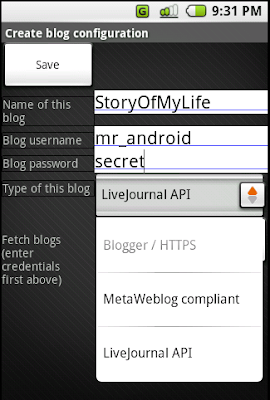
MobiLogger is a mobile blogging tool for the Android platform. It's main design principles are:

* Do one thing (mobile blogging) and do it well
* No matter where your blog is hosted, it'll be editable with MobiLogger
* Simpler is better

Basically, you just install MobiLogger, configure your blog(s) to MobiLogger and start writing. Currently, MobiLogger is in it's first public release so don't expect it to do eveything. But it's constantly improving!


Release 2008.2 feature highlights:

* Supported blog interfaces or services:
o Blogger/Blogspot
o Wordpress weblogs
o Metaweblog api (Drupal and various other CMSs)
o LiveJournal
* Basic yet capable rich text editing features
* Save entries locally and post when connected
* Easy to use

Download to your phone from here

MobiLogger Readme
Follow the project and submit bug reports here

Howto: Install Android Apps(.apk) Via your Android G1 Browser

Here is a nice Youtube Video that shows you how to download/install non-market apps on your G1:

ConnectBot SSH (Secure Shell) client for your G1


ConnectBot is a Secure Shell program for the Android platform. Its ultimate goal is to create a secure connection through which you can use a shell on a remote machine and transfer files back and forth to your phone.

Available in Android Market

The latest stable version of ConnectBot is available in the Android Market. If you want to run the development versions, you can follow these quick steps to getting ConnectBot working on your new G1 Android phone:

1. Enable outside-of-Market applications. Go into Settings, Applications, and enable the "Unknown sources" option.

2. Uninstall any old versions. Go into Settings, Applications, Manage Applications. Look through the list for ConnectBot and uninstall if it's there. or From from your desktop console, type ./adb -d uninstall org.connectbot

3. Install the new version. Open your G1 browser to this page and download one of the APKs shown on the right. Tap on the download when it's done and follow the instructions to install the app. or From your desktop console, download an APK and type ./adb -d install [filename].apk

Here is the current development version as of the date of this post

For Developer Updates/Bug reports check here

Some Command Line Apps for your Android G1

Here are some statically linked android apps for your Android G1 that work in the command line once you get root access.

If you dont already have root access click here

Once root and your /system is writable via the instructions on the above link you can download these files to your /system directory

Bash Borne Again Shell
BusyBox Busy Box
GdbServer
SSH Client
SSH Server

Make sure you then chmod the files once in /system:
chmod 4755

MultiReader - PDF and Word Viewer for Your Android G1

*update* HTC's Pdf Viewer and HTC QuickOffice is added to dudeoflife's latest roms which is much better than any other pdf viewer, more info on flashing roms can be found here

This application can read for you Word, PDF, text document (more formats to come : RTF format currently in dev.) Once TTS (text to speach) will be available on Android, I wil enable speach in the application

Why use MultiReader ?
- Can be used in cars/plain/plane to prepare for business presentation,...
- Can be used in assimilating information, ie. foreign languages, training techniques.
- Can be used in place of lengthy books.
- Can be used in public transportation. Instead of wasting your time, you could learn something. Without bringing big, heavy books / reading on small PDA screens.
- Can be used simultaneously with routine household tasks, such as cooking.
- Can be used to review for an exam.

In general : Use it as you would read a book.

Download Here with your G1

Wednesday, November 5, 2008

Root your Android G1 Phone and install Busybox on it!

As you seen before this post I have managed to gain root on the G1 phone, in the mean time their has been easier steps on getting root, and installing busybox...

Here are the steps you can take:

1. Download and install a terminal emulator on your phone. (Click here for Term.apk)
2. Make sure your phone is not connected to your PC and open up the Terminal Emulator and run 'telnetd'
3. Now telnet into your phone from your PC (run 'netstat' in the terminal emulator to get the phone's IP)
4. In the telnet terminal you are now root!

5. (optional) To permanently enable root access you can create an "su" command in /system/bin (Warning: creating su on your system could make you vulnerable to malicious software. You could name it something besides su, but you could still be vulnerable):

mount -o remount,rw -t yaffs2 /dev/block/mtdblock3 /system
cd /system/bin
cat sh > su
chmod 4755 su

Now you can fire up the Terminal Emulator and run "su" to be root.

Now once that is all done download http://www.billrocks.org/android_libs/bin/busybox to the sdcard, then do:

cat /sdcard/busybox >/system/bin/busybox

chmod 4755 /system/bin/busybox, now you can execute hundreds of busybox commands like a full linux shell!